



Related News


 16/17F, Emdoor Building, No.8 Guangke 1st Road, Pingshan District, Shenzhen


Software and Hardware Integration: Android and Windows Built-in Software for Emdoor Rugged Devices
Software and Hardware Integration: Android and Windows Built-in Software for Emdoor Rugged Devices
In previous articles, we introduced Emdoor’s Linux customization capabilities, integrated industrial vision inspection solutions, and full-stack MDM device management system. These topics all point to one clear direction: rugged devices are no longer defined by hardware durability alone.
For frontline industries, software experience has become just as important as protection ratings, performance, battery life, and connectivity. A rugged terminal must not only survive harsh environments. It also needs to help users work faster, manage devices more easily, and adapt to different operating scenarios.
This article takes a closer look at the built-in software ecosystem of Emdoor rugged devices, focusing on Android and Windows platforms. From key mapping and barcode scanning to kiosk mode, OTA updates, battery management, and user control center functions, these tools help industry users improve daily operations and device maintenance.
Key Takeaways
- Android Built-in Software: Emdoor Android rugged devices include tools for key mapping, barcode configuration, kiosk mode, OTA updates, and extended system settings.
- Windows User Control Center: Emdoor Windows rugged devices integrate device information, battery settings, key customization, control panel options, and help tools in one interface.
- Scenario-Based Design: These software tools are built around real field operations such as scanning, inspection, production, logistics, vehicle use, and long-shift work.
- Software + Hardware Value: Built-in software helps rugged terminals become easier to operate, easier to maintain, and more closely aligned with industry workflows.
Quick Answer: Why Does Built-in Software Matter for Rugged Devices?
Built-in software helps rugged devices adapt to real industry workflows. For Android rugged terminals, tools such as key mapping, barcode configuration, kiosk mode, OTA updates, and extended system settings improve field efficiency and device control. For Windows rugged devices, a user control center simplifies device information viewing, battery management, key customization, system backup, and update operations. Together, these tools make rugged devices more practical for daily frontline use.
From Rugged Hardware to a Complete Software Ecosystem
Rugged tablets, handheld terminals, and vehicle-mounted devices are often selected for harsh environments. Users care about drop resistance, IP protection, wide-temperature operation, sunlight-readable screens, and long battery life. However, once the device enters daily operations, another question quickly appears: can the device make work easier?
For warehouse workers, a physical button may need to launch the scanning app instantly. For production lines, a terminal may need to stay locked to one business application. For field inspection, accurate system time and stable battery behavior may directly affect task records. For Windows device users, quick access to system information and recovery tools can reduce maintenance pressure.
That is why Emdoor continues to build software tools into its rugged device ecosystem. The goal is simple: help devices better understand work scenarios and help users complete tasks with fewer steps.
Android System: Six Built-in Software Tools for Rugged Terminals
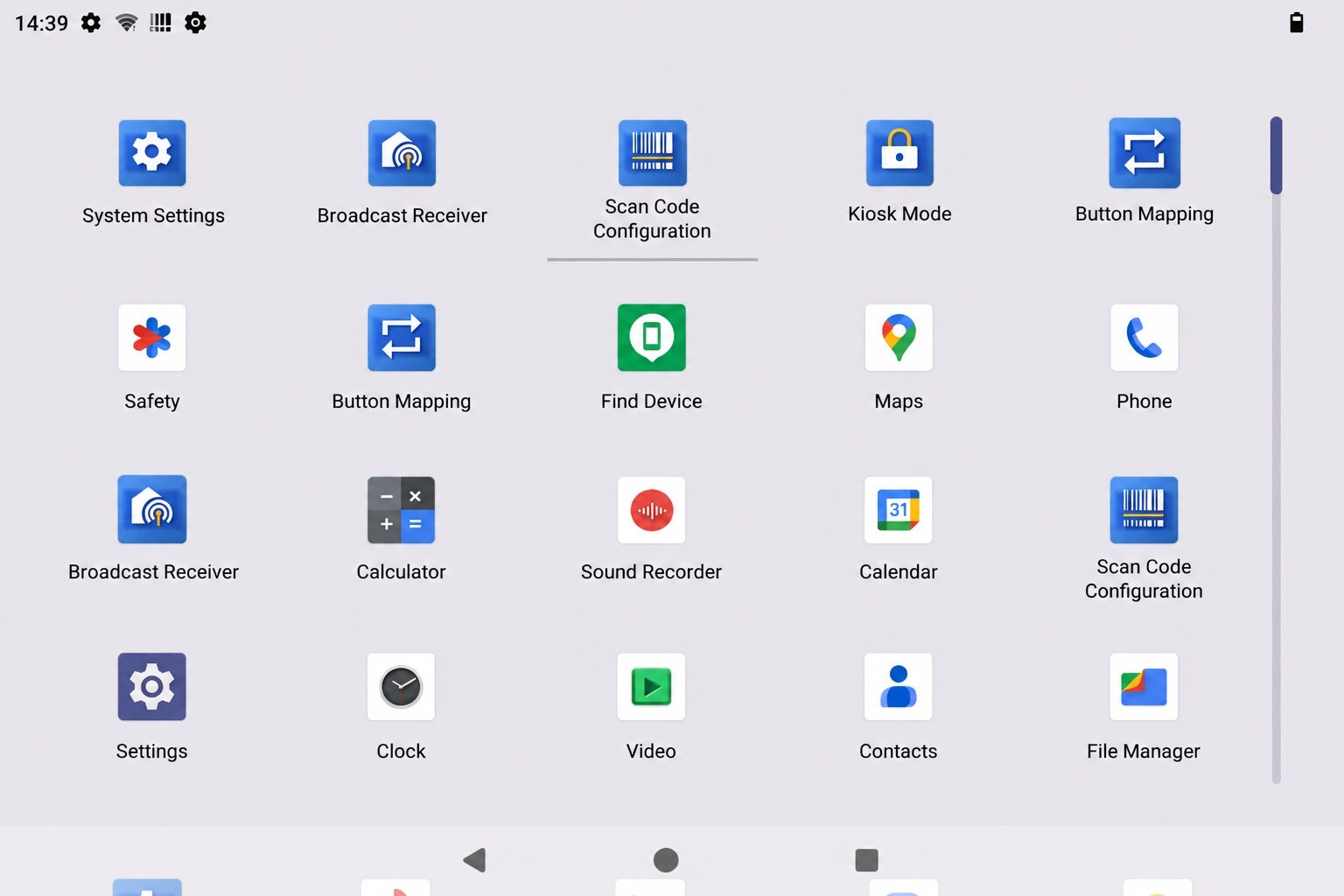
On Android rugged devices, Emdoor provides a set of built-in software tools that cover key customization, barcode scanning, device control, remote upgrade, and system-level configuration. These tools help Android rugged tablets and handhelds better fit industry workflows instead of forcing users to adjust their processes around the device.
Android Software 01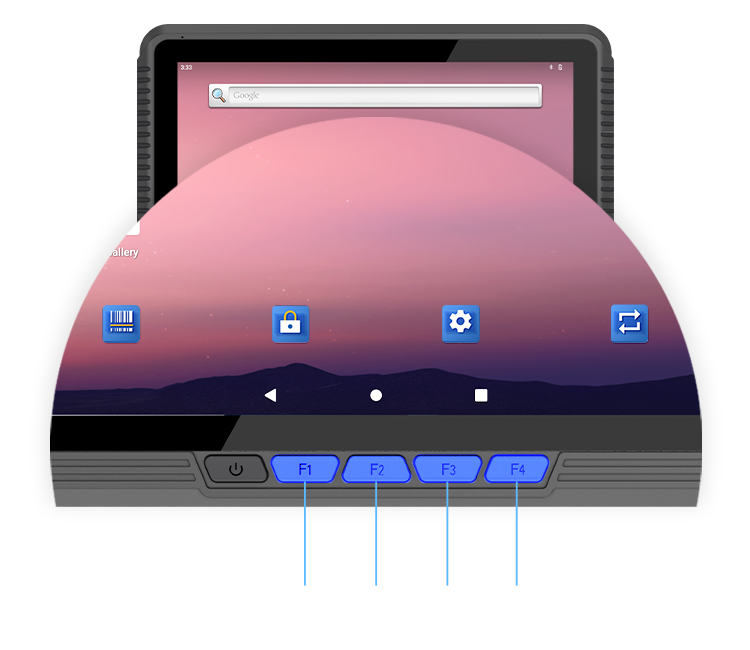
Key Mapping: Make Physical Buttons Work for Your Workflow
Key mapping allows users to remap the physical buttons of rugged devices. Instead of repeating touchscreen steps, users can assign frequently used actions to hardware buttons, such as opening a high-frequency application, starting barcode scanning, or triggering a specific system operation.
For field workers, this can make daily operations faster and more reliable. In many rugged environments, users may wear gloves, work outdoors, or move quickly between tasks. A physical button can be easier and more stable than multiple screen taps.
New Function: Send Key
The Send Key function allows a physical button to trigger preset system keycode values and respond to specific operations. This gives industry users more flexible button extension capabilities, especially in scanning, inspection, vehicle, and production scenarios.
New Function: Broadcast Receiver
The built-in broadcast receiver supports multiple broadcast events and user-defined broadcasts. By configuring broadcast receivers, users can automatically wake up corresponding functions or services and enable linked responses between different device components.
Android Software 02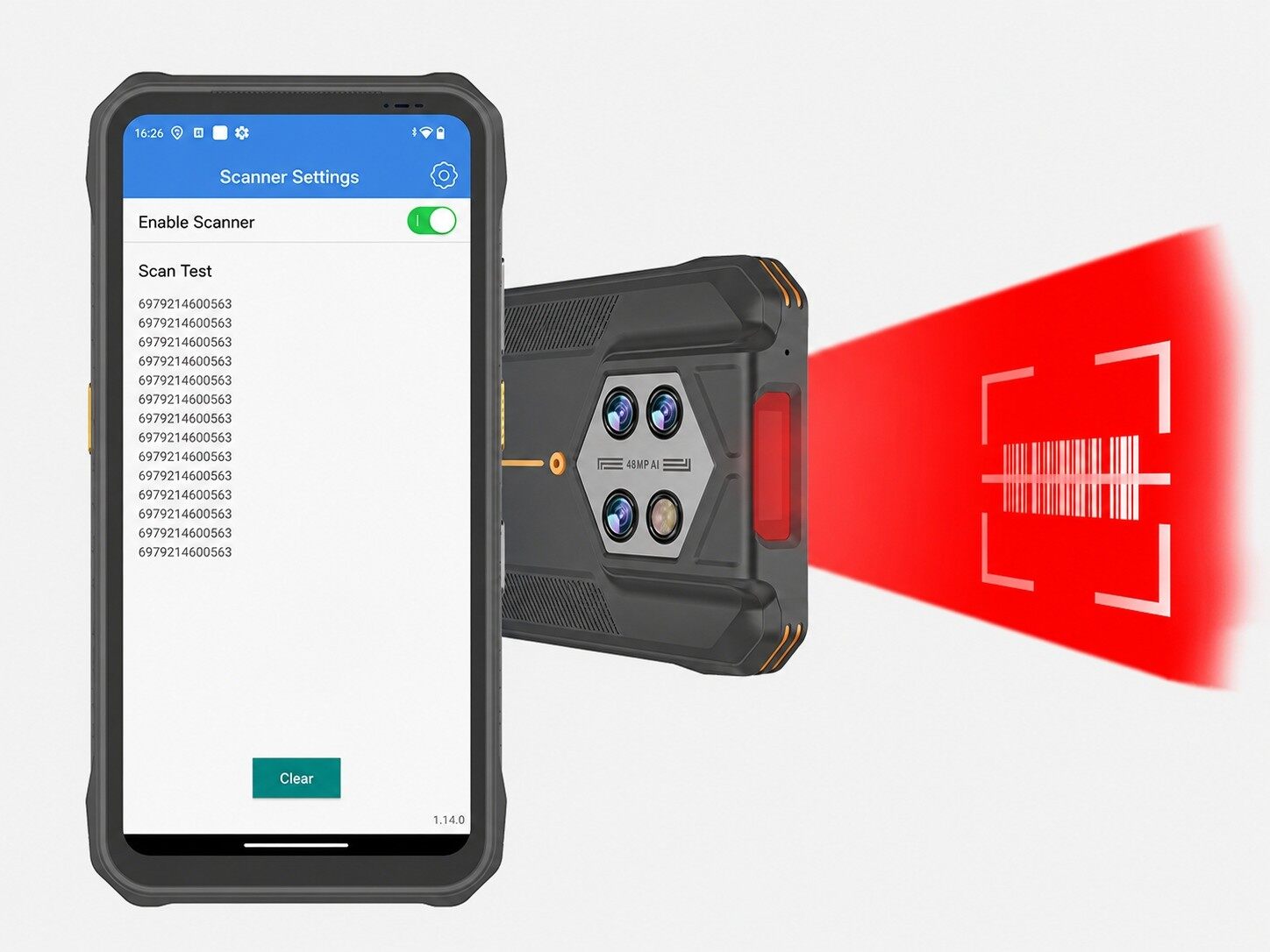
Barcode Configuration: Adapt the Device to Your Scanning Business
Barcode configuration provides multiple options for barcode symbologies, characters, output formats, and input modes. This allows Emdoor rugged terminals to adapt to different scanning workflows, rather than forcing the business process to adapt to default device settings.
For warehousing, logistics, retail, manufacturing, and asset management, flexible barcode configuration helps improve scanning accuracy, data input consistency, and operational efficiency.
Android Software 03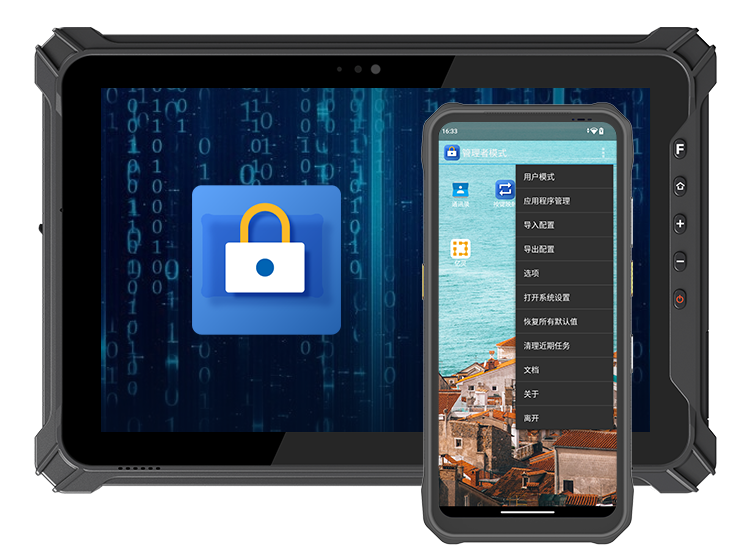
Kiosk Mode: Keep Rugged Devices Focused on Business Tasks
Kiosk mode allows a device to run only one application or a specified group of applications. It helps prevent accidental touches, unrelated operations, unauthorized app access, and workflow interruptions.
Whether the device is used for warehouse scanning, production line operation, self-service terminals, inspection checklists, or task-specific applications, kiosk mode helps ensure that rugged devices focus only on the intended business workflow.
Android Software 04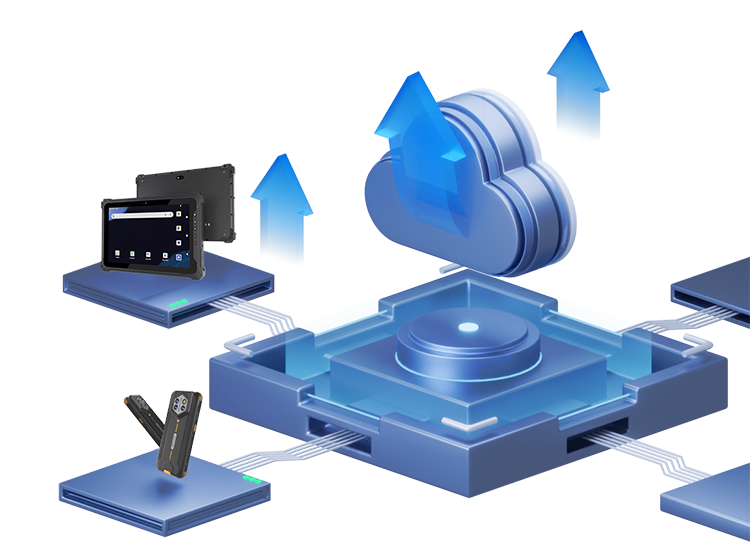
OTA Updates: Keep Rugged Devices Secure and Up to Date
OTA updates allow system patches and security updates to be pushed without returning devices to the factory. For enterprises with distributed rugged device fleets, this can significantly reduce maintenance costs and improve update efficiency.
With OTA update support, Android rugged terminals can continue receiving system improvements, security enhancements, and functional updates throughout their lifecycle.
Android Software 05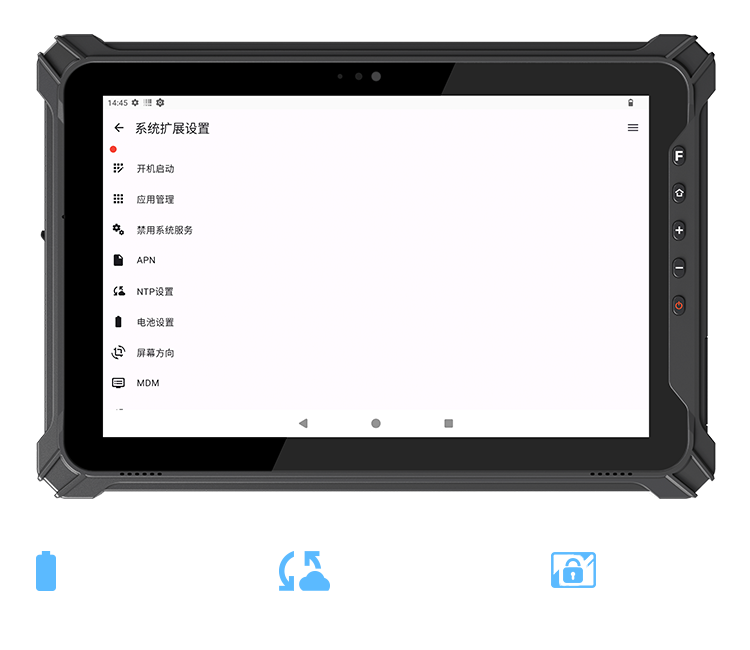
Extended System Settings: Deeper Device Control for Field Work
Extended system settings bring together additional functions covering system operation, display, network, storage, battery, buttons, and other core modules. This gives users deeper control over device behavior and creates a more complete operating experience.
For professional industry users, these settings help the device better match specific environmental and operational requirements.
New Function: Battery Settings
Battery settings provide charging start and stop control, high- and low-temperature adaptive adjustment, sleep protection, automatic shutdown, and other options. Users can configure device behavior based on battery level and temperature thresholds to help extend battery life.
New Function: NTP Settings
After NTP settings are enabled and connected to a server, the device can automatically synchronize system time with the NTP server. This helps keep time records accurate and reduces manual time calibration work.
New Function: Screen Saver
When screen timeout is set to “Never,” users can enable the screen saver and define a screen-off waiting time. After the set time is reached, the screen turns off automatically while the application continues running in the background.
Windows System: User Control Center for Centralized Device Operation
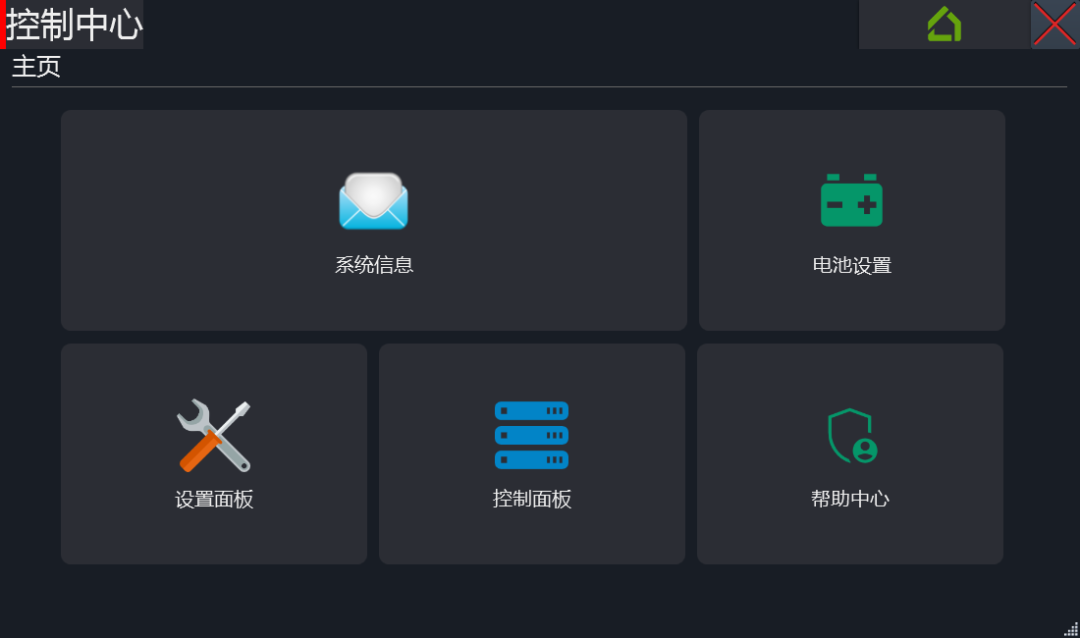
For Windows rugged devices, Emdoor provides a User Control Center that integrates device information, intelligent battery management, key customization, network mode switching, system backup, restore, and update tools into one interface. This makes Windows rugged terminals more intuitive, easier to operate, and easier to maintain.
Windows Tool 01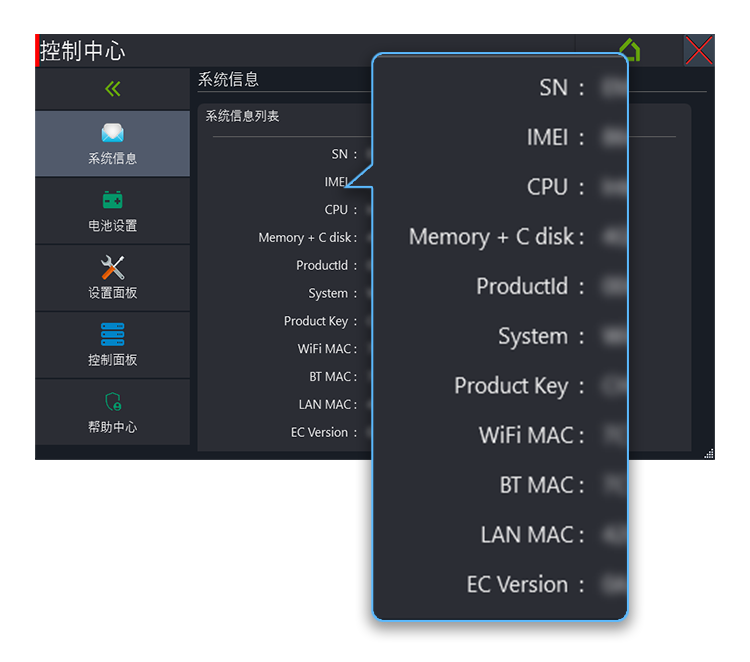
System Information: View and Export Device Details Quickly
The system information module displays key hardware and device parameters such as SN, IMEI, CPU, memory, storage, and MAC address. Users can also export information as a TXT file for later maintenance, asset management, or technical support.
Windows Tool 02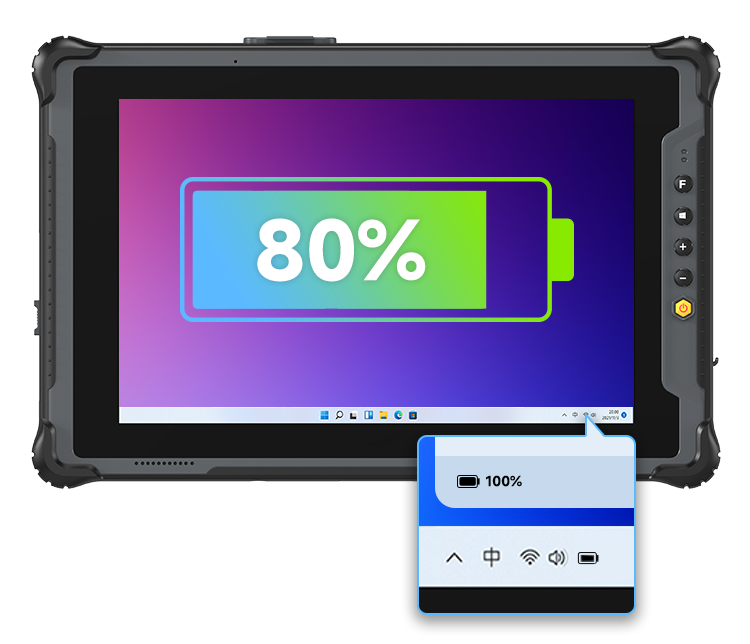
Battery Settings: Match Charging Behavior to Real Usage
Battery settings provide multiple operating modes, including normal mode, reserve mode 1, reserve mode 2, and 0.5C current mode. These options help users match battery behavior to different working scenarios.
Reserve modes are especially useful for environments where devices are connected to external adapters for long periods. This helps support safer and more stable long-term use.
Windows Tool 03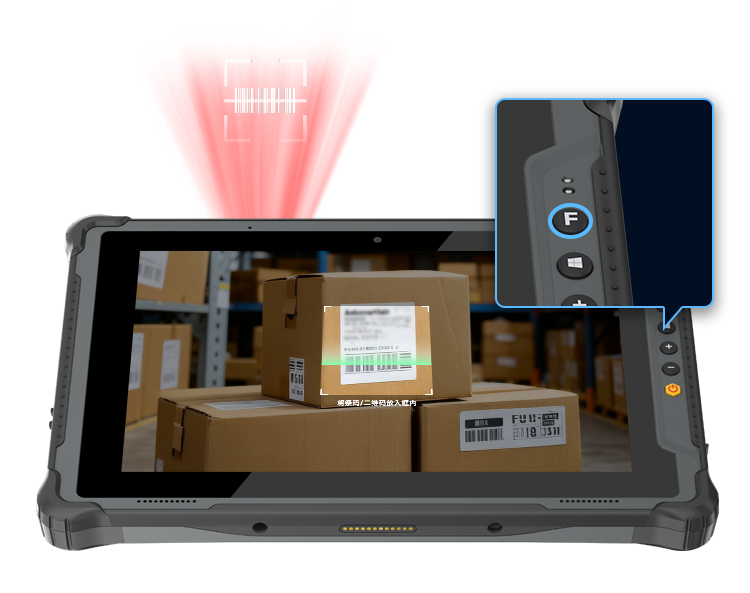
Settings Panel: Customize Physical Buttons and Fan Mode
The settings panel supports customization of physical button functions such as P1/P2, +/- and Fn keys. Users can assign shortcut actions based on real operating habits and task requirements.
The panel also supports fan mode settings, helping users better balance device performance, temperature control, and working environment requirements.
Windows Tool 04
Control Panel: One-Click Switching for Common Device Modes
The control panel allows users to quickly switch common device modes, including airplane mode, stealth mode, automatic power-on while charging, automatic shutdown after unplugging, and preventing system sleep.
All settings are automatically saved and remain effective after device restart, reducing repeated configuration work and improving long-term usability
Windows Tool 05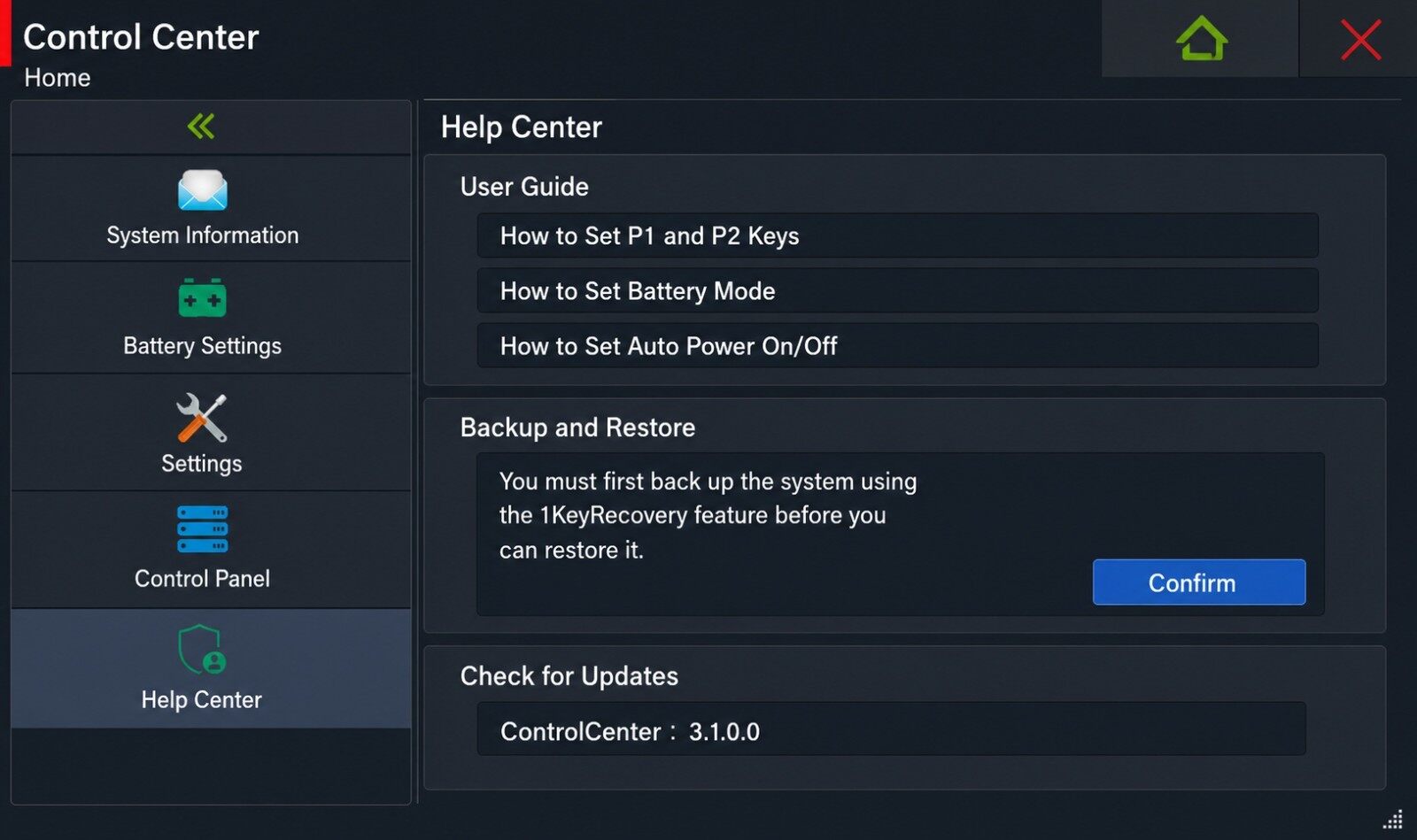
Help Center: Manuals, Tutorials, Backup, Restore, and Updates
The help center includes PDF manuals and video tutorials to help users quickly understand device functions. It also supports system backup, system restore, and online update checks.
For enterprise users, these tools can reduce maintenance pressure, simplify user training, and make long-term device operation more reliable.
How Built-in Software Improves Real Rugged Device Workflows
The value of built-in software is not only reflected in a function list. More importantly, it changes how rugged devices are used in real work. A warehouse worker can scan faster. A factory operator can stay focused on the required application. A field engineer can keep the device updated. A Windows rugged tablet user can export device information and manage battery behavior more easily.
Fewer Operation Steps
Key mapping, kiosk mode, and shortcut settings help users complete high-frequency actions faster.
Better Device Control
System settings, app restrictions, battery modes, and control panel options make device behavior more manageable.
Lower Maintenance Pressure
OTA updates, system backup, restore functions, and online update checks help reduce repetitive maintenance work.
Stronger Scenario Adaptability
Flexible software settings allow the same rugged device family to serve logistics, manufacturing, retail, inspection, vehicle, and public service scenarios more effectively.
Conclusion: Rugged Devices Should Be Strong in Both Hardware and Software
From rugged hardware design to software ecosystem development, Emdoor continues to make rugged terminals more scenario-aware and business-ready. Android built-in software tools and the Windows User Control Center together form a more complete software-hardware value loop.
For industry users, this means rugged devices can do more than withstand harsh environments. They can also simplify operation, improve efficiency, reduce maintenance pressure, and better serve real frontline workflows.
Looking ahead, Emdoor will continue listening to customer feedback from real working environments and keep improving software features and user experience for rugged device applications.